Accessing Your Giving Statement
View Your Current Giving Progress & Your Giving Statements from Previous Years
How would you like to view your giving statements?
Follow these instructions for viewing a PDF file of your giving statements through our church app or online.
HOW TO VIEW YOUR GIVING STATEMENT ONLINE
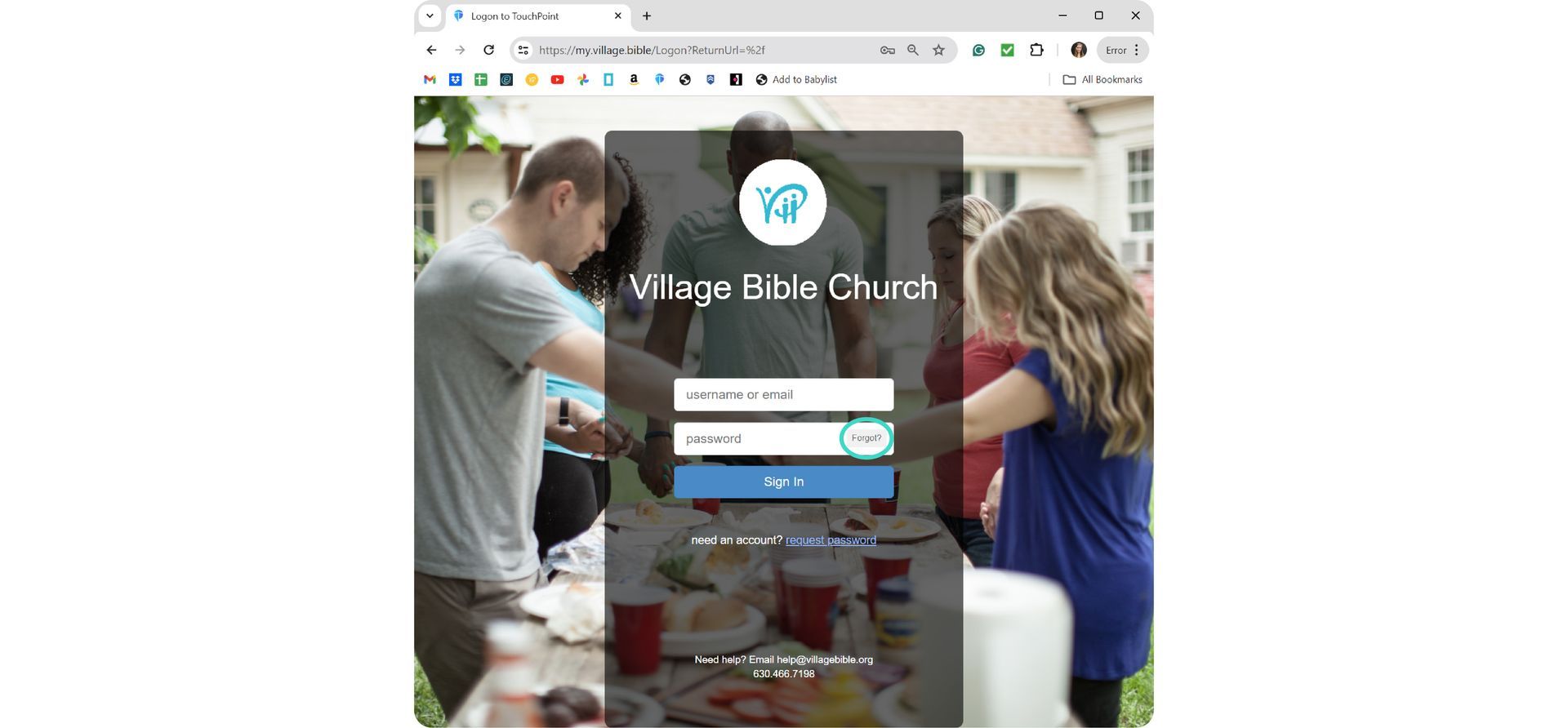
1. Sign in to our church database, TouchPoint.
- Click on the button below to sign in to TouchPoint.
- If you forgot your password or just don't know what it is, click on "Forgot?" in the password field.
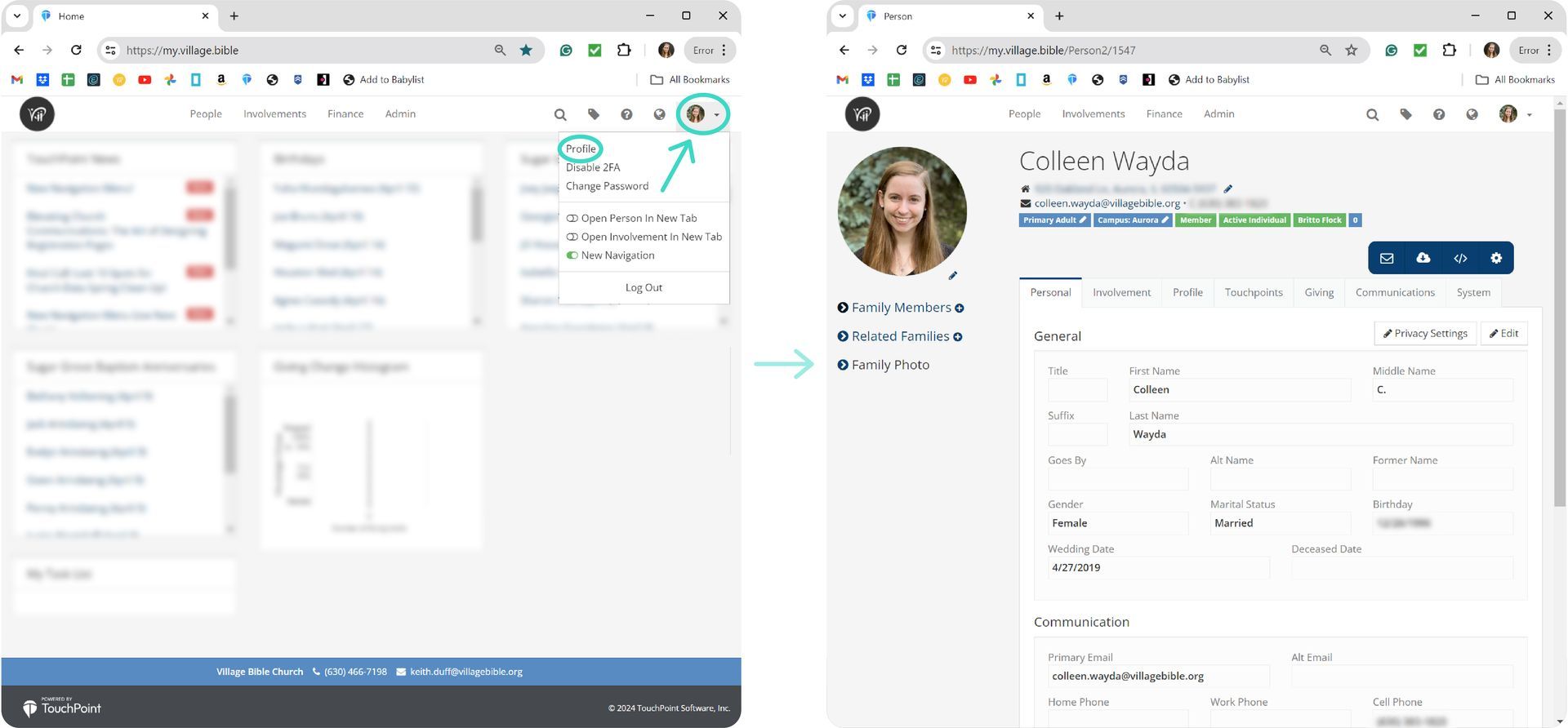
2. Make sure you are on your profile page.
- In most cases, you will automatically be taken to your profile page.
- If you're not on your profile page, click on your picture in the upper right-hand corner and select "Profile"
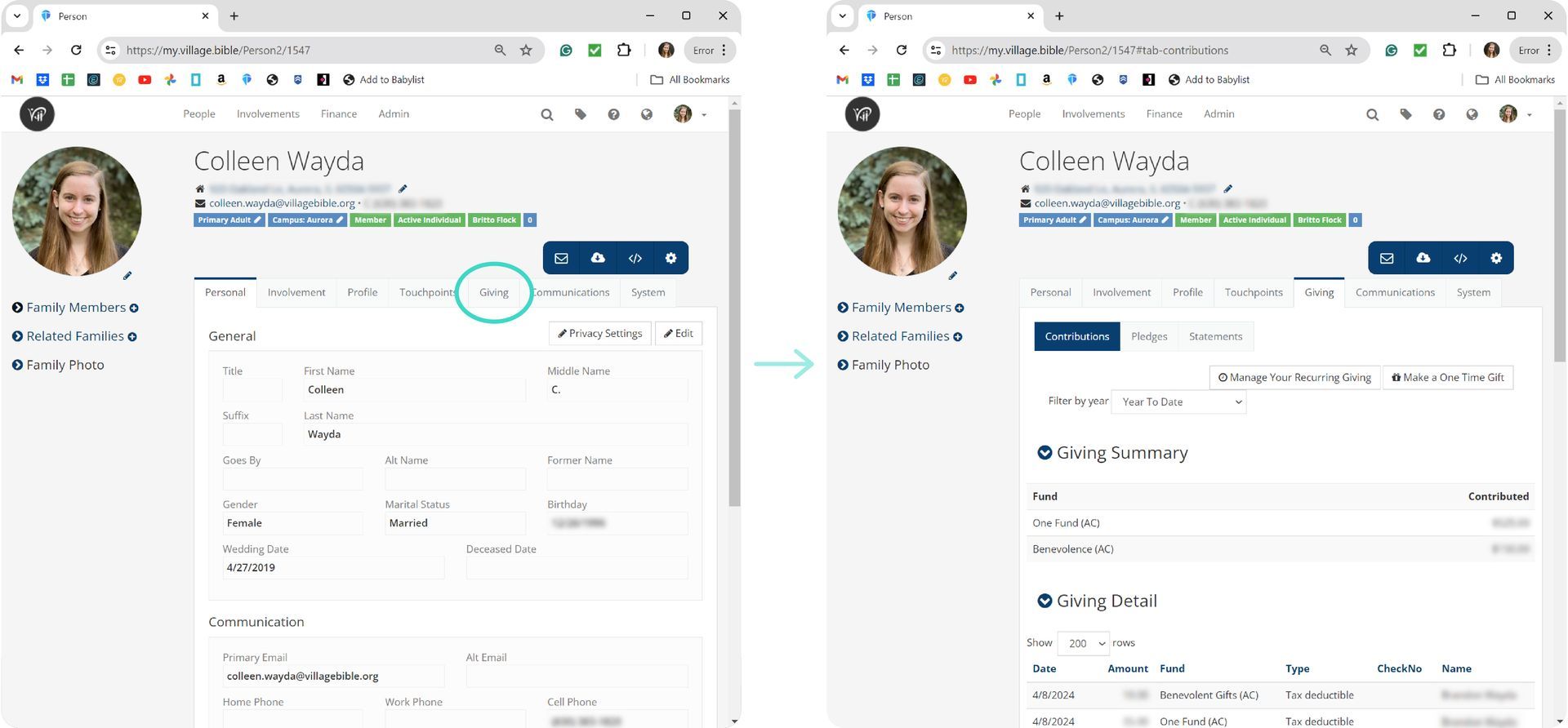
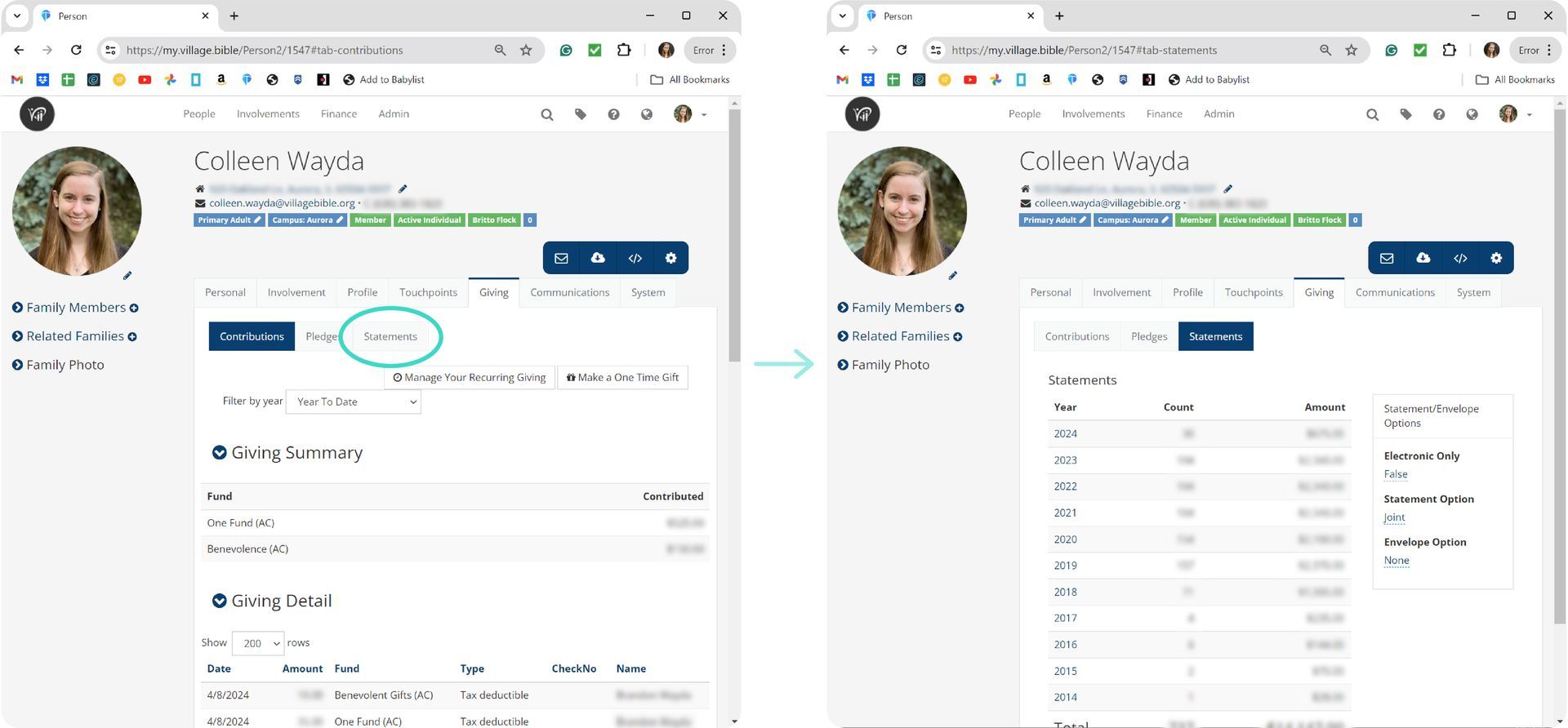
3. Select the "Giving" tab.
- Selecting the "Giving" tab will show you your Giving Summary and Details for the current year.
4. Click the "Statements" button.
- Clicking on the "Statements" button will show your total gifts for each year you have given.
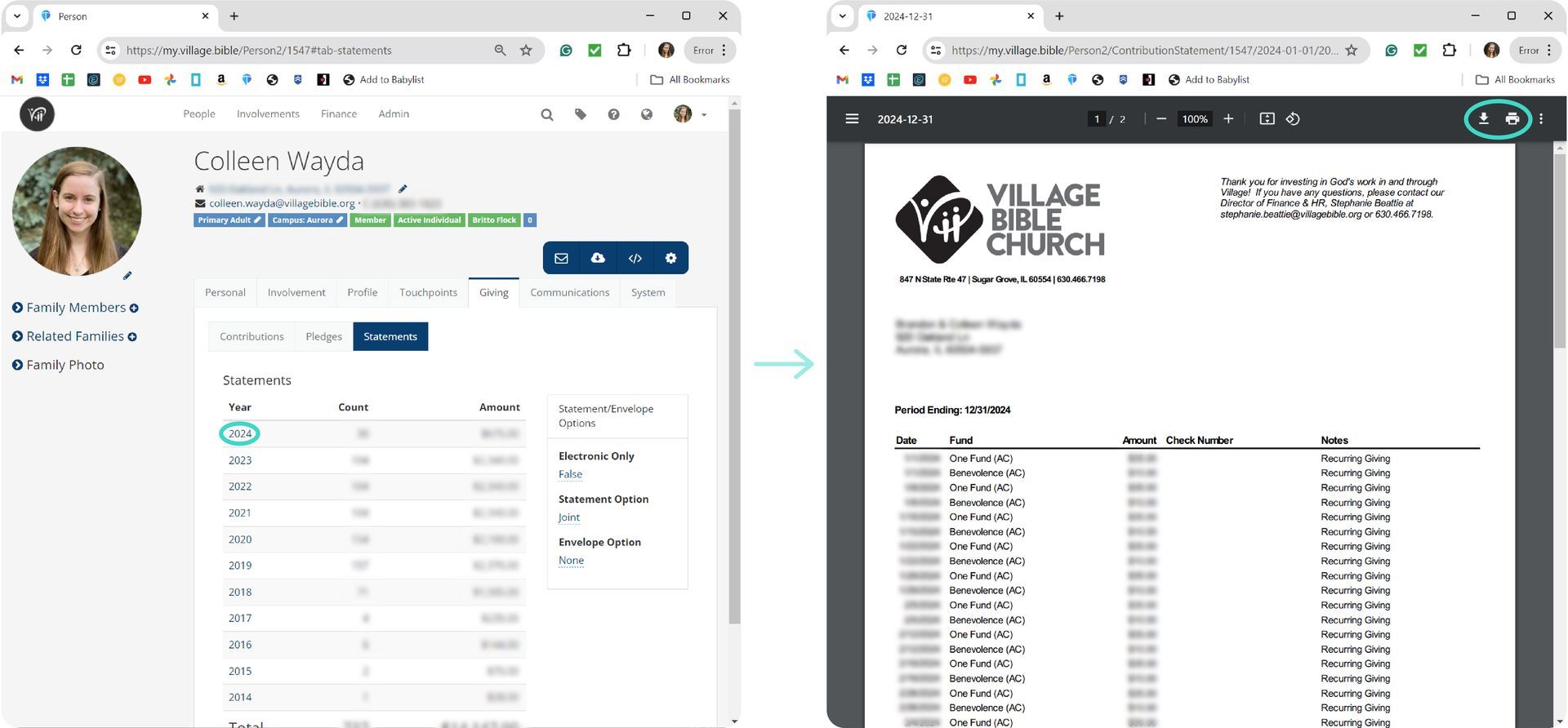
5. Select the year of your desired giving statement.
- To view the PDF of a giving statement, click on the year for the statement you wish to open.
- The PDF will open in your web browser where you can view, save/download, or print your statement.
HOW TO VIEW YOUR GIVING STATEMENT ON THE CHURCH APP
1. Open the Village Bible Church app on your phone.
- If you don't already have it, click on the buttons below to download the app
- Already have the app? Skip to Step 3.



2. Sign in to the app.
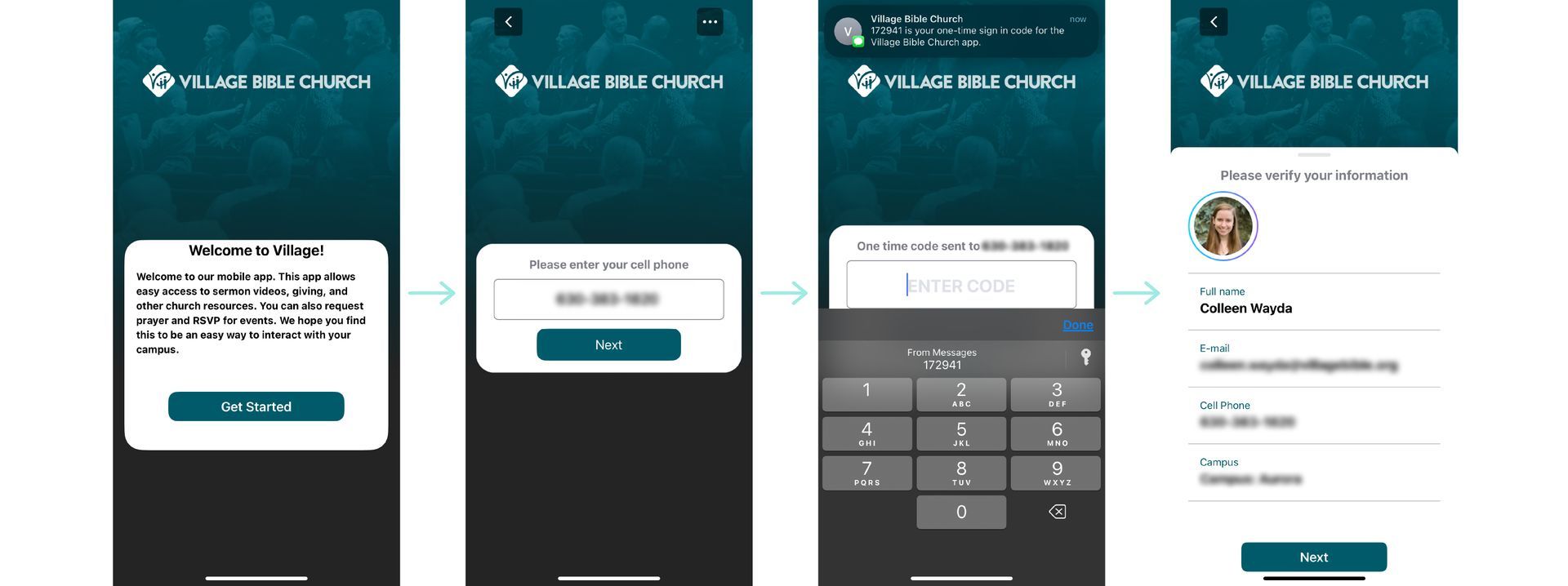
- Tap the "Get Started" button.
- Enter your cell phone number and tap the "Next" button.
- Enter the sign-in code that was texted to your phone and tap the "Verify" button.
- Verify your information and tap the "Next" button.
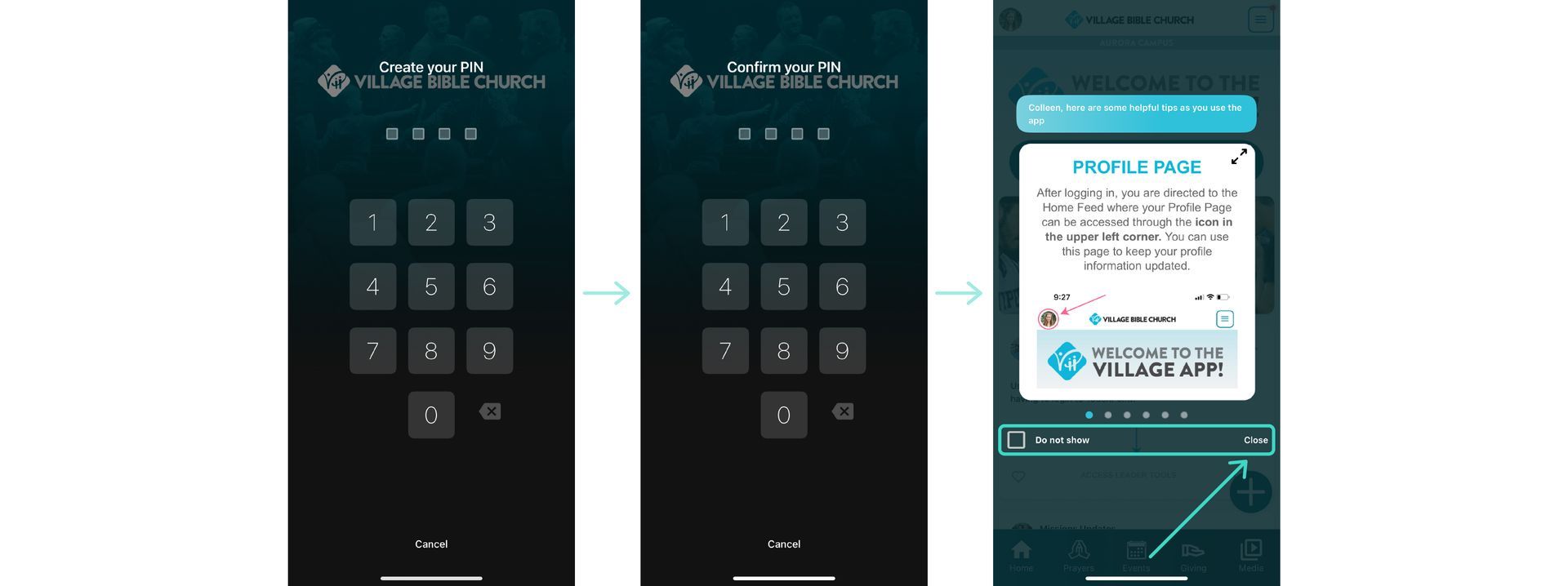
- Create a 4-digit PIN for your password
- Confirm your PIN number
- Close the app tips by tapping "Close" (Optional: Read through the helpul app tips before closing them.)
3. Tap the "Giving" icon at the bottom of the screen.
- Selecting the "Giving" icon will give you the option to Make a Gift, Manage Recurring Giving, or view your giving History & Statements.
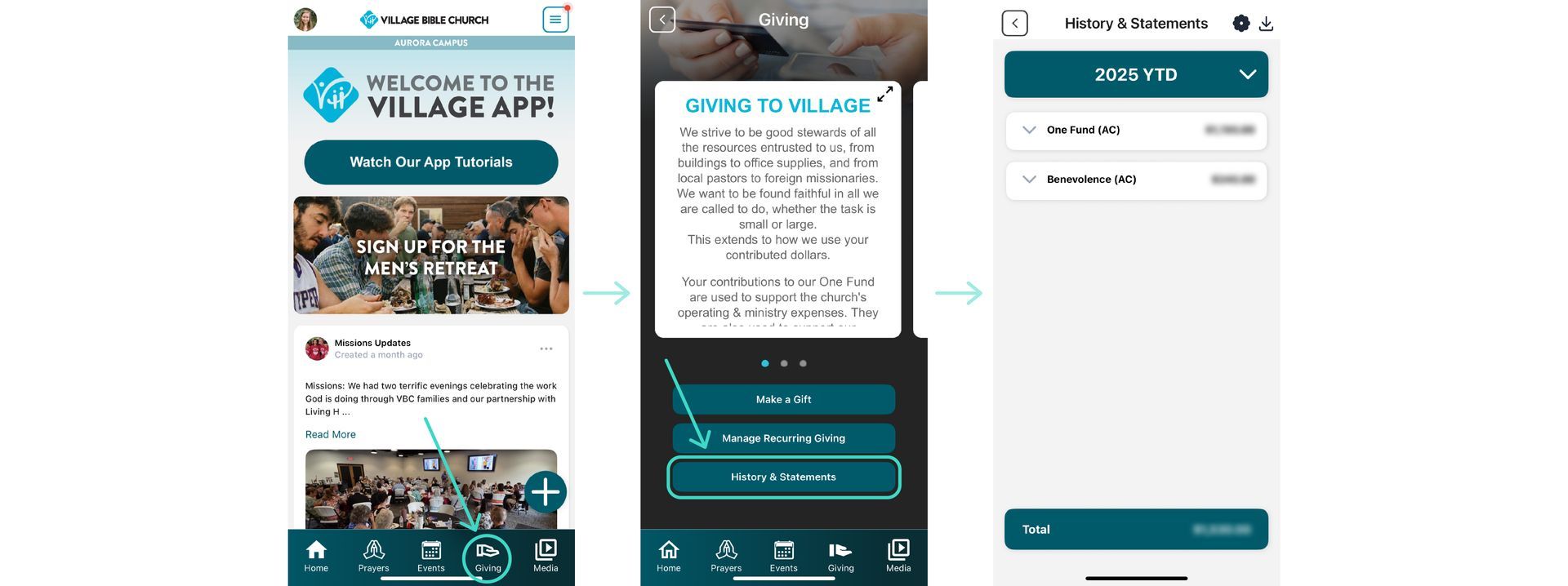
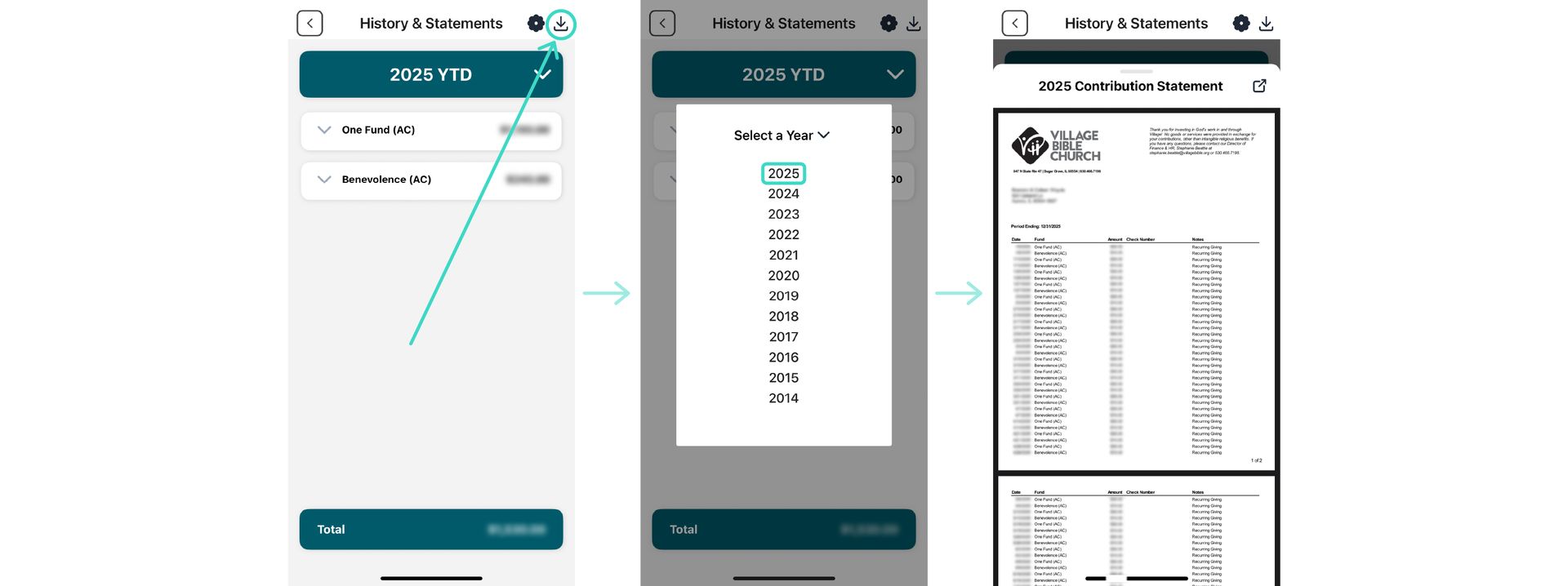
4. Tap the "History & Statements" button.
- From here you can view your gifts in the app view or you can tap the download icon to access a PDF of your Year-to-Date gifts from a selected year.